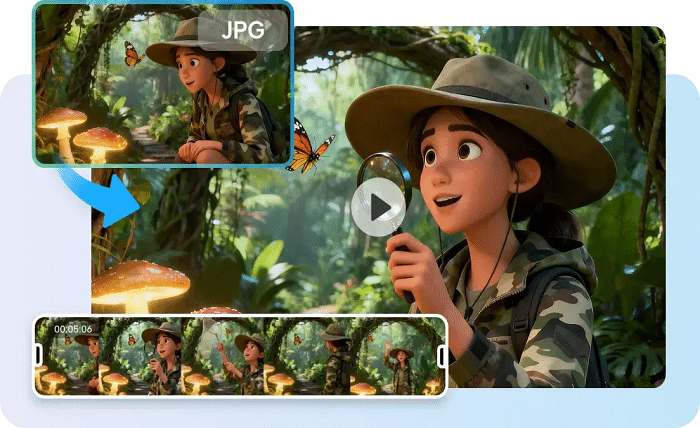
Scenes with structure help to understand the image, tell a story, and hold viewers’ interest. Pippit guides creators to create structured AI videos with prompt guidance, references, and editing controls. It offers an advanced video workflow for cleaner video compositions without complex production skills. Creators can craft well-balanced scenes, position objects, and make efficient adjustments to the visuals. This makes it easier to create video that looks professional for various creative projects.
Why Scene Layout Matters in AI Video Production
How viewers comprehend visual information throughout a video depends on scene layout. Clear layout – makes the subject visible; separates important elements from supporting details. Pippit’s AI video generator features intelligent generation, which helps to deliver structured scenes with improved visual organization. Balanced composition is important for helping to harmonize objects, backgrounds, and camera angles. Spacing helps to eliminate distractions and focus the audience’s eye. A planned arrangement also helps to make stronger storytelling, as every visual will be serving the main message. When creating product videos, ads, and creative work, a clean layout can help the ideas get across.
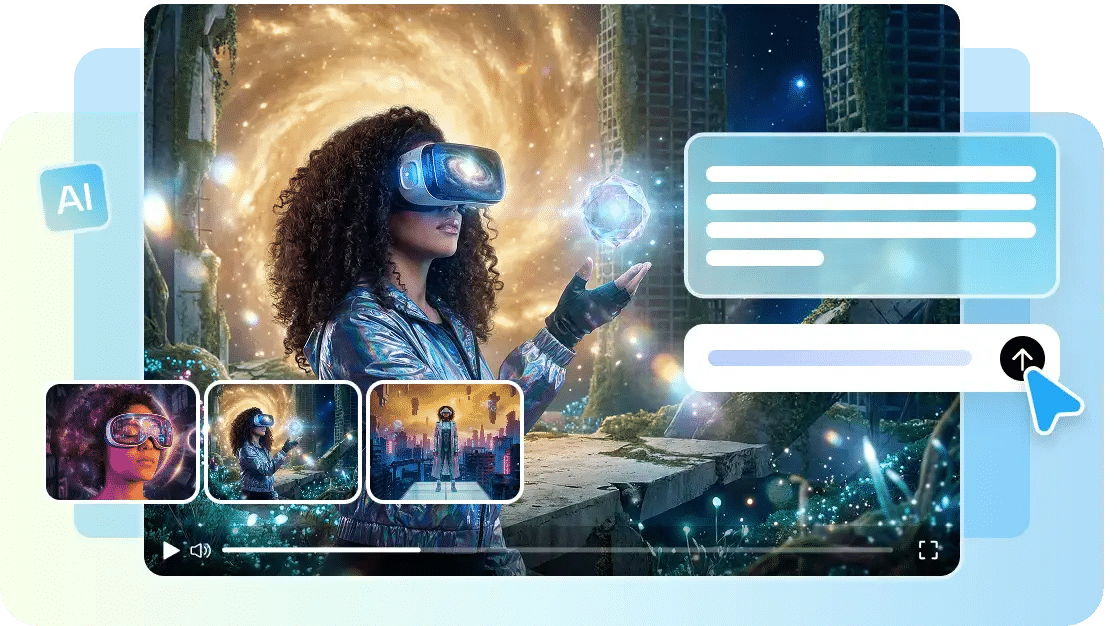
Plan Cleaner Scene Layouts Before Video Generation
Planning allows for improved results and fewer unnecessary revisions. Begin by outlining the main subject and determining its location in each scene. Organize foreground and background elements logically so as to give depth and visual interest. Keep items at a distance so they don’t get too close to one another. Consider the framing of the camera carefully to facilitate each transition of the scene. Creators can use Pippit’s prompts and references to explain these details. Seedance 2.5 ensures organized scenes with good visual flow through clear planning. A structured layout also helps the progression of the scenes by making smooth connections between the opening, middle, and ending moments.
Seedance 2.5 Features That Improve Scene Organization
Seedance 2.5 in Pippit offers highly evolved controls to make intricate and organized AI videos. The position and movement control of objects helps to define the position of elements accurately during the scenes that are generated. Timestamp prompts enable creators to set up layout changes at particular moments. Composition consistency is achieved with multi-modal references using images, videos, and visual examples. Green screen editing offers flexibility for background replacement post-generation. Storytelling is continuous for 30 seconds, which makes it possible to tell a story without breaking ideas into several clips. The technology also provides realistic rendering of detailed environments, natural motion, lighting, textures, and cinematic camera logic. These features enable creators to craft cleaner scenes with enhanced control.
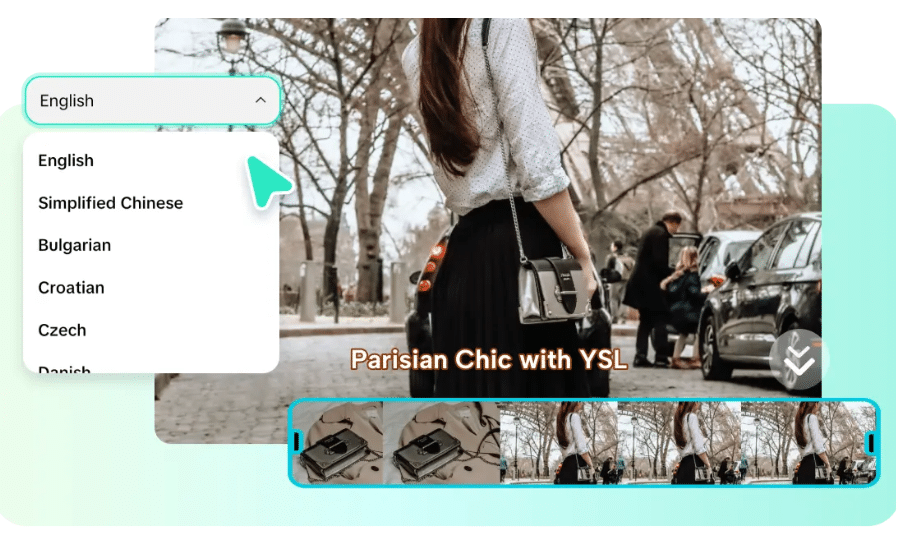
Steps to Generate Cleaner and Custom Scene Layouts with Seedance 2.5
Step 1: Build your custom scene structure
-
Sign up for Pippit using your Google, TikTok, or Facebook account details.
-
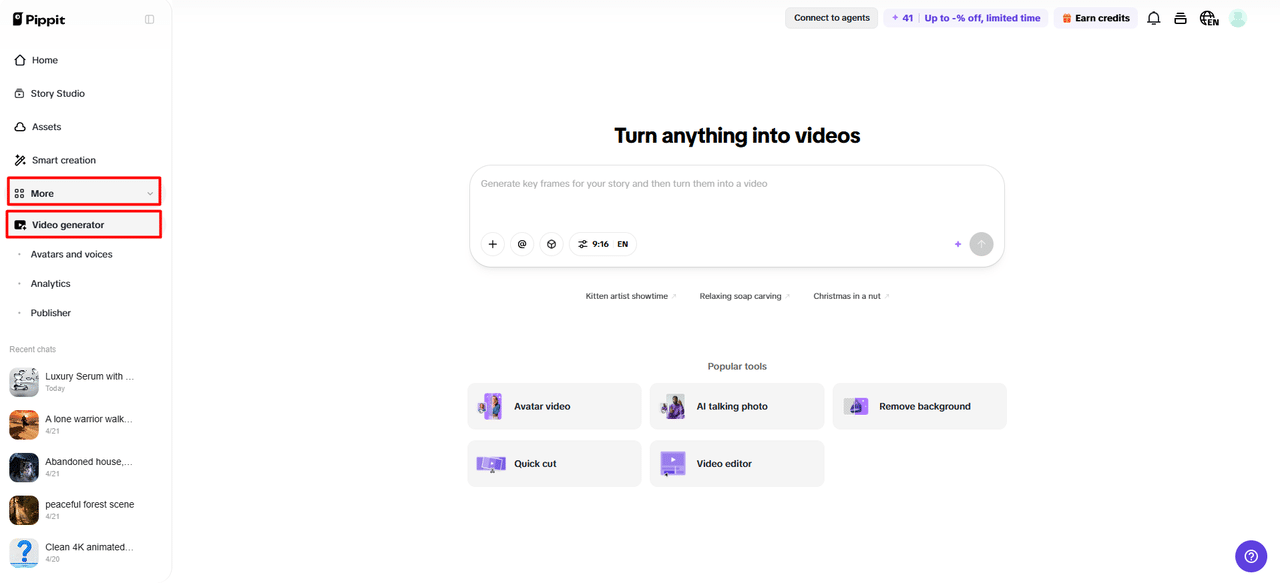
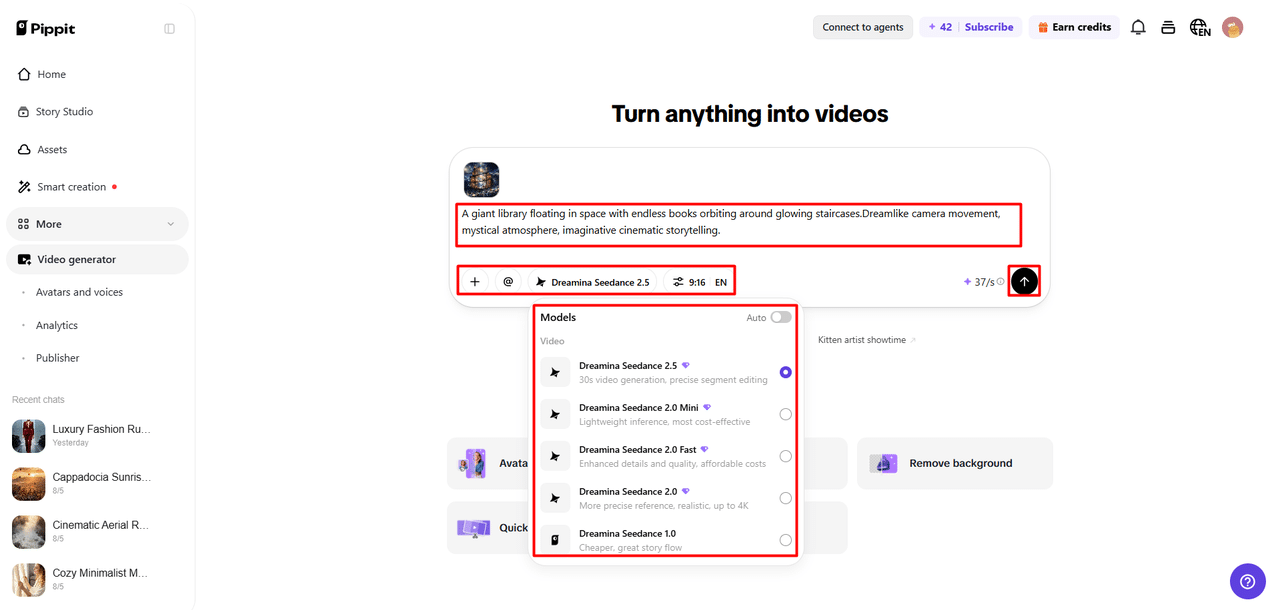
Open the left vertical menu bar, click the “More” tab, and select “Video generator”.
-
Choose “Dreamina Seedance 2.5” to create clean and customized scene layouts.
-
Add a detailed text prompt explaining your scene arrangement, background, objects, and visual composition.
-
Select the video length, language, subtitles, and aspect ratio based on your requirements.
-
Click “+” to upload reference images or videos from your device, phone, Dropbox, or a link. You can also select available assets.
-
Once all details are added, click “Generate”.
Step 2: Generate organized AI scenes
-
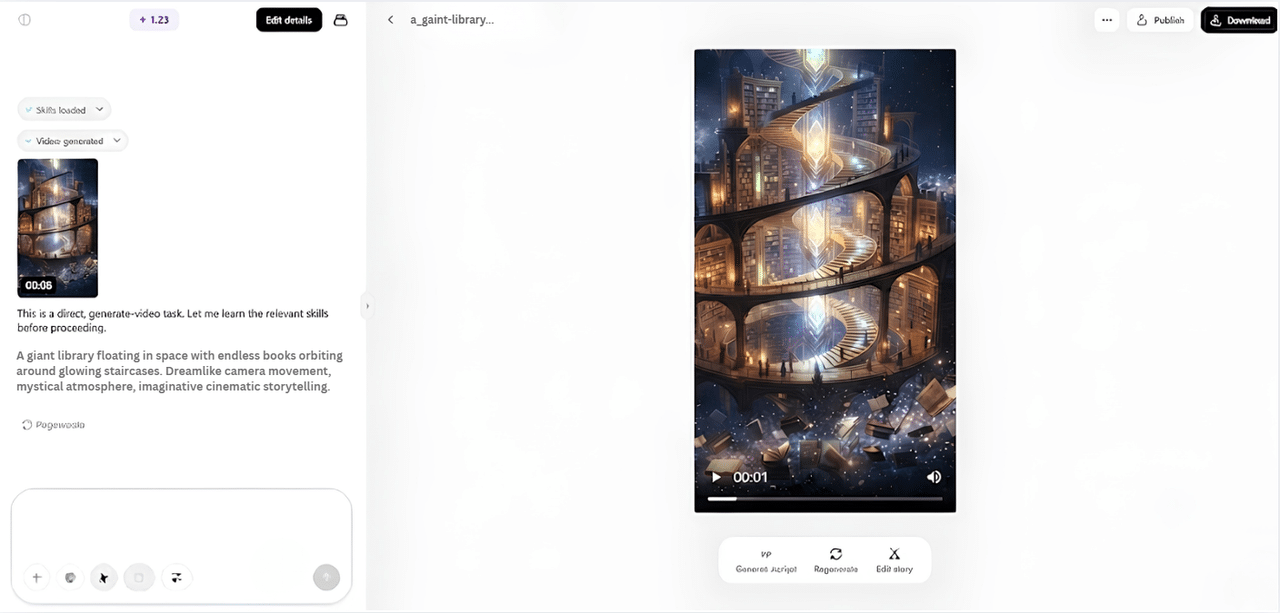
After clicking “Generate”, Pippit’s AI video generator creates a video based on your prompt and reference media.
-
The AI manages transitions, pacing, captions, avatars, voice, lyrics, and visual enhancements for a cleaner scene flow.
-
You will receive a video draft to review.
Step 3: Adjust layouts and export your video
-
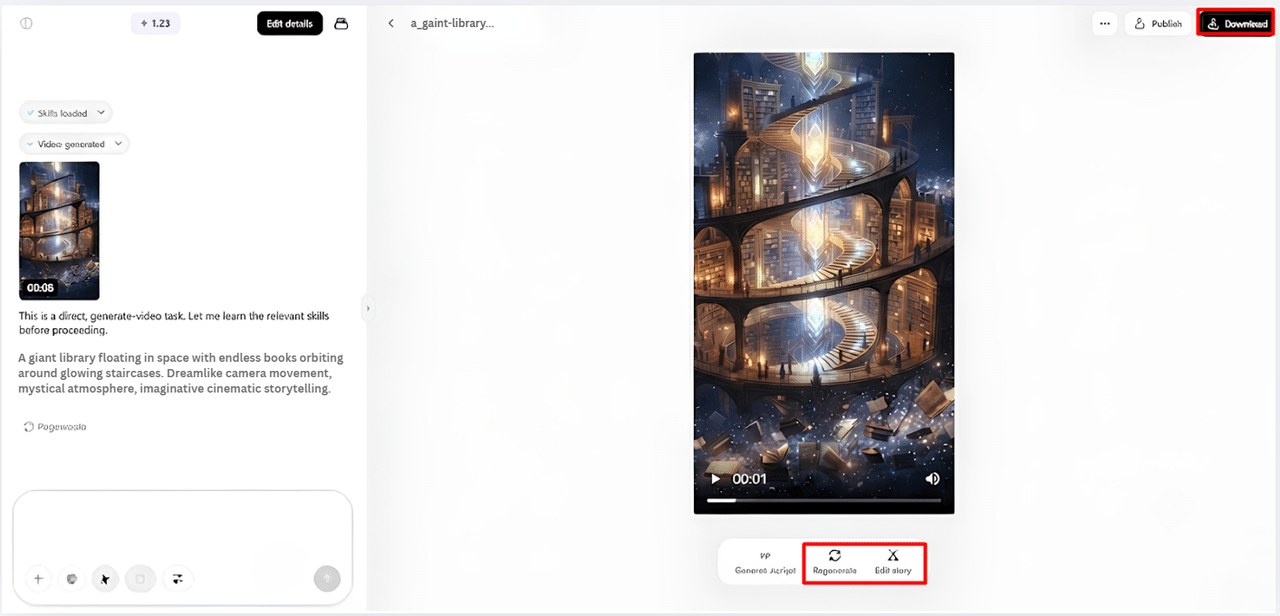
Click the “Download” tab in the top right corner to save your video. If you need changes, click “Regenerate” or select the “Edit more” tab below the video for further customization.
-
Edit captions, add text, and adjust text size, color, alignment, filters, and effects.
-
Add background music, remove backgrounds, and fine-tune visuals for a better layout.
-
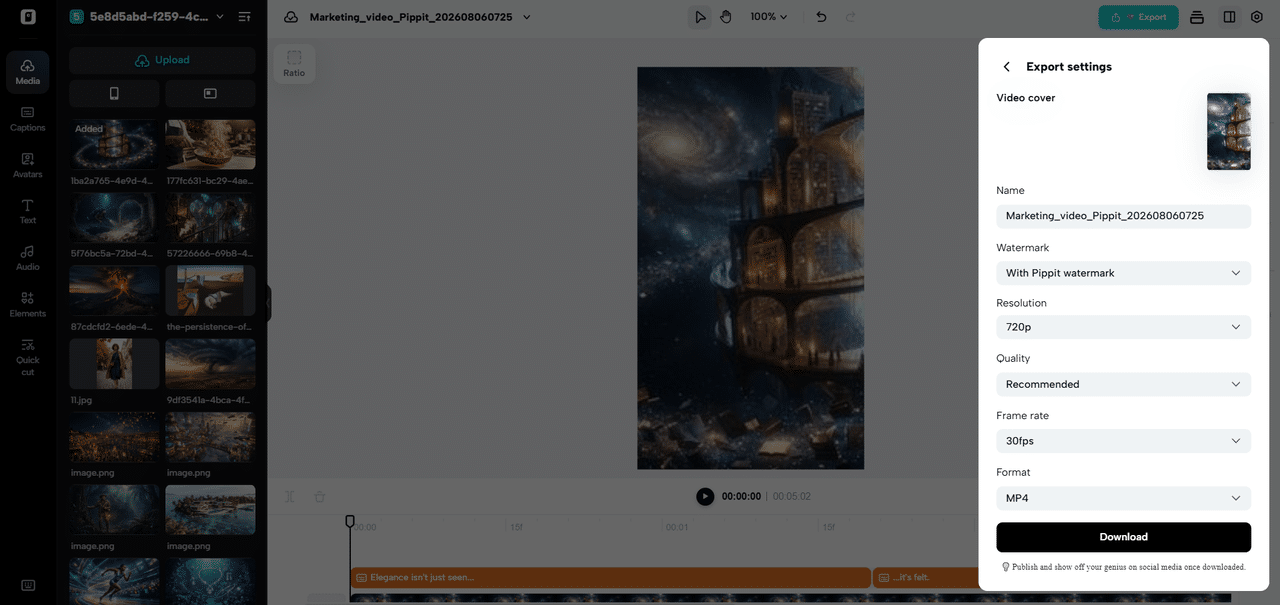
Click “Export” in the top right corner after completing edits.
-
Choose “Publish” to share directly on TikTok, Instagram, or Facebook, or click “Download” to save the video with your preferred format, resolution, frame rate, and quality.
Improve Scene Layouts Through Better Prompt Design
The more effective the prompts are, the more accurate the scene arrangements and the better the visual results are. Describe the location, size, and nature of interacting objects. Set the distance and framing of the camera for perspective. Use time marker cues to cue movement and significant scene changes. Talk about environmental depth to establish realistic foreground/background relationships. Introduce and discuss visual hierarchy and the order of what to draw attention to. Reuse important style elements for consistent composition between scenes. The detailed prompts enable Pippit to grasp creative direction and generate video content that is better structured. Clear instructions also help to minimize unwanted elements and enhance the visual quality overall.
Elements That Create Cleaner Scene Layouts
Balanced composition, controlled object placement, consistent framing, reference-based styling, organized backgrounds, and a final layout review lead to professional scenes. These elements assist creators in ensuring the visual quality of their AI video projects.
-
Balanced Composition: Place main subjects in a way that they are visually balanced, and leave negative space.
-
Controlled Object Placement: Put supporting elements in logical places and avoid clutter when moving.
-
Consistent Camera Framing: Use the same kind of framing in related shots, and try not to change the perspective unnecessarily.
-
Reference-Based Styling: Submit references to help with composition, appearance, and creative direction.
-
Organized Background Design: Create a background that is focused and get rid of the distracting elements.
-
Final Layout Review: Pay close attention to generated sequences and make sure they are aligned correctly before exporting.
Common Layout Mistakes to Avoid
Bad scene choices can lessen the quality of the video and make people less interested. If there are too many people in the picture, then it will be hard to see the subject matter. An inappropriate subject positioning can lead to ambiguous relationships. If the framing of the camera is not consistent, it can break the continuity of the story between related scenes. An imbalance in visual hierarchy leads people to look at things that don’t need to be seen. Different reference materials can result in different styles and appearances. Also, neglecting editing refinements restricts the final quality. Pippit offers editing features that allow you to address these problems prior to publication. Checking all the scenes will help make the final video look pro.
Ideal Applications for Custom Scene Layouts
Many creative and marketing uses can be made of custom scene layouts. Organized shots that emphasize features and details are advantageous for product presentation videos. Brand messages are communicated clearly in promotional ads by using structured scenes. In the process of making social media campaigns, the layout needs to be fascinating so as to capture the attention of viewers quickly. Creative storytelling projects use scene control to enhance the story and emotion. Clear arrangements are important for educational visual content to enhance understanding. Brand-focused marketing videos can be used in a consistent manner throughout marketing campaigns. Pippit offers flexible generation and editing workflows to aid creators in creating these visuals. Structured layouts make content more suitable for digital platforms, promotion channels, and creative presentations.
Conclusion
Pippit simplifies AI video generation with prompting controls, object placement, reference points, high-fidelity modeling, and video editing. With proper planning, you can create more effective scene setups and more engaging visual stories. Checking the sequences produced and making adjustments can be done to improve consistency between projects. The preparation and post-production editing can help creators to produce polished videos for different creative needs.